A pointer the agent can call
Mouse and keyboard travel over a local API and MCP while the sketch is running.
LiveUse is the macOS app for a Seeed XIAO SAMD21. With the sketch running, it publishes an API and an MCP for the mouse and the keyboard, then stays in the menu bar when you close the window.
Download for MacFree on macOS, with a public checksum. Linux and Windows are in progress.
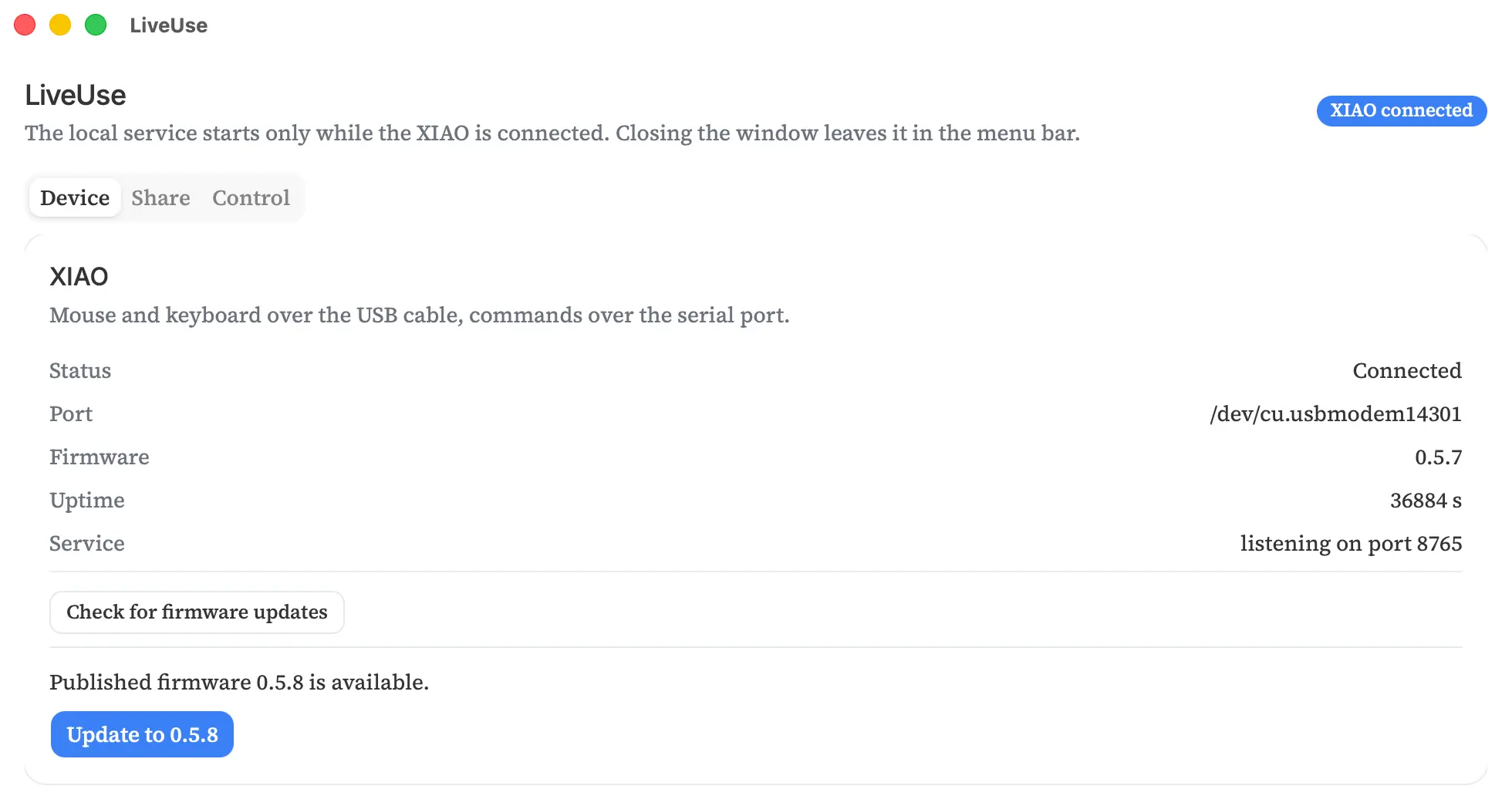
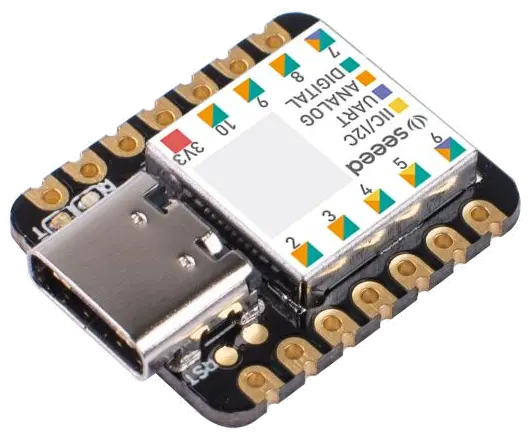
An agent on another computer cannot move your cursor by itself. LiveUse runs on that Mac, with a Seeed XIAO on the desk, and publishes the mouse and the keyboard on the local network.
Mouse and keyboard travel over a local API and MCP while the sketch is running.
LiveUse stays in the menu bar. Quit in that menu ends the app. A Dock click opens the window again.
The Share tab shows the URL, the token, and the MCP configuration. A new token stops the previous clients.
Each installer shows its size and SHA256 checksum. Copy the checksum and compare it.
The agent gets a pointer.
Only the token can use it.
Flash LiveUse onto a Seeed XIAO SAMD21 and leave it running. The bootloader does not start the service.
Open the disk image, drag LiveUse to Applications, and allow screen recording plus incoming connections.
Copy the URL and the token from the Share tab. Closing the window leaves the service in the menu bar.
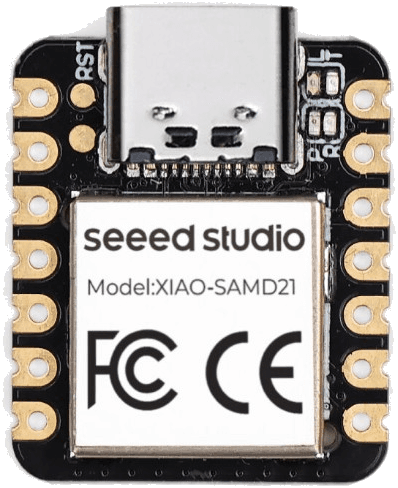
What you can download today is the macOS app and the sketch for a Seeed XIAO SAMD21. Other boards are being explored, including the first steps of a smaller board that plugs straight into the computer. Desktop builds for Linux and Windows are in progress too.
The sketch uses FreeRTOS.
One installer for Intel and one for Apple Silicon. Open the Apple menu and choose About This Mac. If it says Chip, choose Apple Silicon. If it says Processor, choose Intel.
Loading the installers.
Install, permissions, the board, and who can use the token.
Open the Apple menu and choose About This Mac. If it says Chip, download Apple Silicon. If it says Processor, download Intel.
Open the disk image and drag LiveUse to Applications. When a build is not signed, right click LiveUse the first time and choose Open.
Screen recording, for the captures an agent needs. Incoming connections, so the API can listen on your local network.
Today, a Seeed XIAO SAMD21 with the sketch running. The bootloader does not start the service. Other boards are being explored, and a smaller board that plugs straight into the computer is in its first steps.
Anyone with the token on that local network. The Share tab can issue a new token. The previous one stops working.
Closing the window leaves LiveUse in the menu bar. Quit in that menu ends the app. A click on the Dock icon opens the window again.
Press Control, Option, Command, and Escape together. That aborts the current operation and opens the window. Stop in the chat does the same thing.
The installer on this page is macOS. Desktop builds for Linux and Windows are in progress.
On the public GitHub release for the version shown on this page. The link sits with the two installers.
Free, with a public checksum on each file. No account.
Download for MacVersion 0.2.0. Release notes
LiveUse 0.2.0
LiveUse_0.2.0_x64.dmg
6.1 MB
Download for IntelSHA256 checksum
4ac7087a0877cae8ddecfc0302d32c6f06b144f361e2b8dbeb933c3737a359ad
LiveUse 0.2.0
LiveUse_0.2.0_aarch64.dmg
5.7 MB
Download for Apple SiliconSHA256 checksum
c37b1a0faff5abd40d8add0336e39e4346a838aedd1e838642147443fe8e4f84
This build is not signed or notarized. The first time, right click LiveUse and choose Open.